

Your inbox fills up with chats that are already over. You answered, the customer said nothing more, and the chat stays open for days. Every morning your team scrolls past them, and the customers who do need an answer get lost in between.
TheTechPad can resolve those chats for you. You choose how long a chat waits, and once that time passes with no activity, it is resolved on its own. A resolved chat leaves your open chats and moves to Resolved in the chat filters: nothing is deleted. Your customer receives nothing, and if they write again, the chat reopens and lands in your inbox like any new message.
Before you start
- The Business or Enterprise plan. On other plans the page shows you how to upgrade.
- The owner, an admin or a supervisor sets it up: the same people who manage automatic assignment.
- One number at a time. Each WhatsApp number has its own settings, so repeat these steps on every number you want.
1. Turn it on
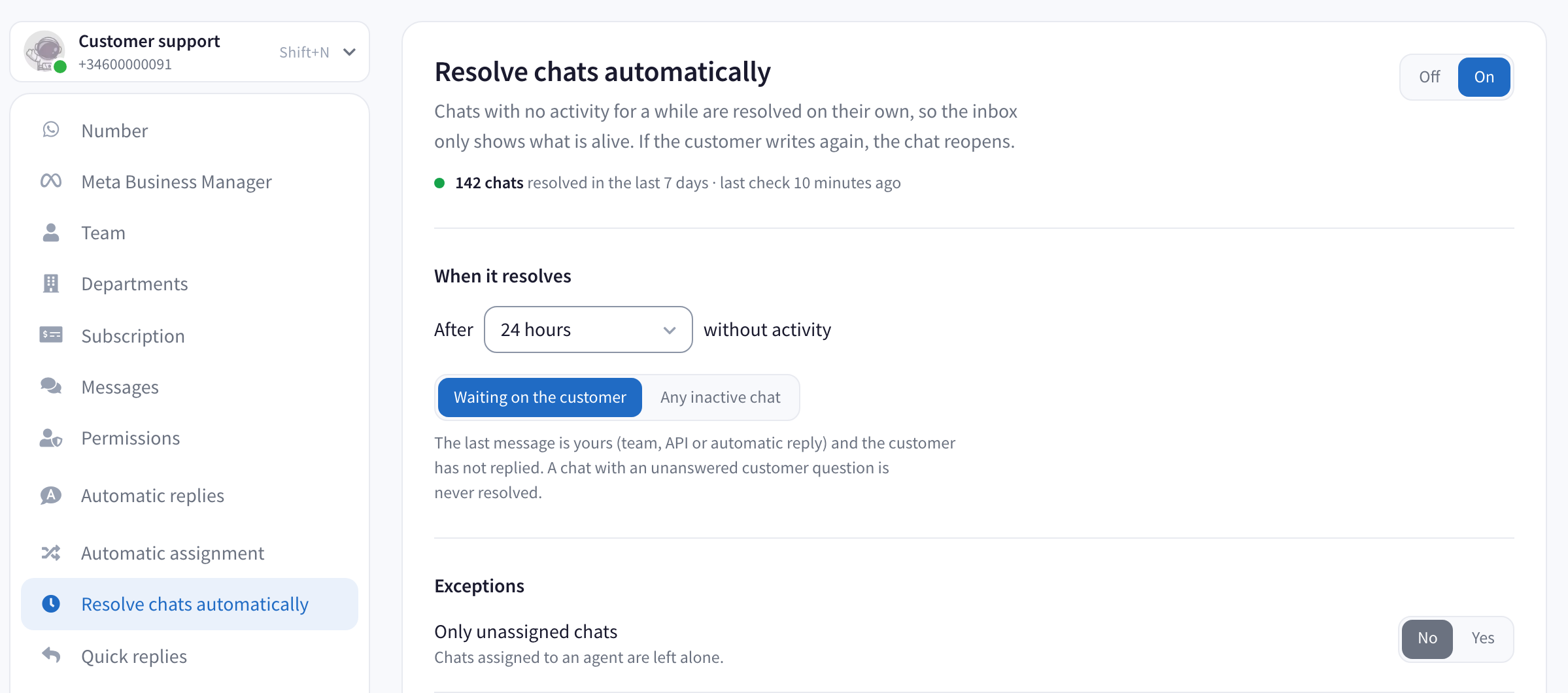
- In your dashboard, go into your WhatsApp number and click Resolve chats automatically.
- Click On.
- Under When it resolves, choose how long a chat waits, from 6 hours to 30 days. The time counts every hour, weekends included. 24 hours suits a business that answers every day; if you close at weekends, choose 3 days.
- Leave Waiting on the customer selected. It only resolves chats where you are waiting for the customer to answer: the last message is yours and the customer did not reply.
If you use automatic replies, like an away message out of hours: here an automatic reply counts as an answer. A customer who writes on Saturday and only gets your away message counts as a chat waiting on the customer. Choose 3 days, so it is still in your inbox on Monday.
2. Choose what it never touches
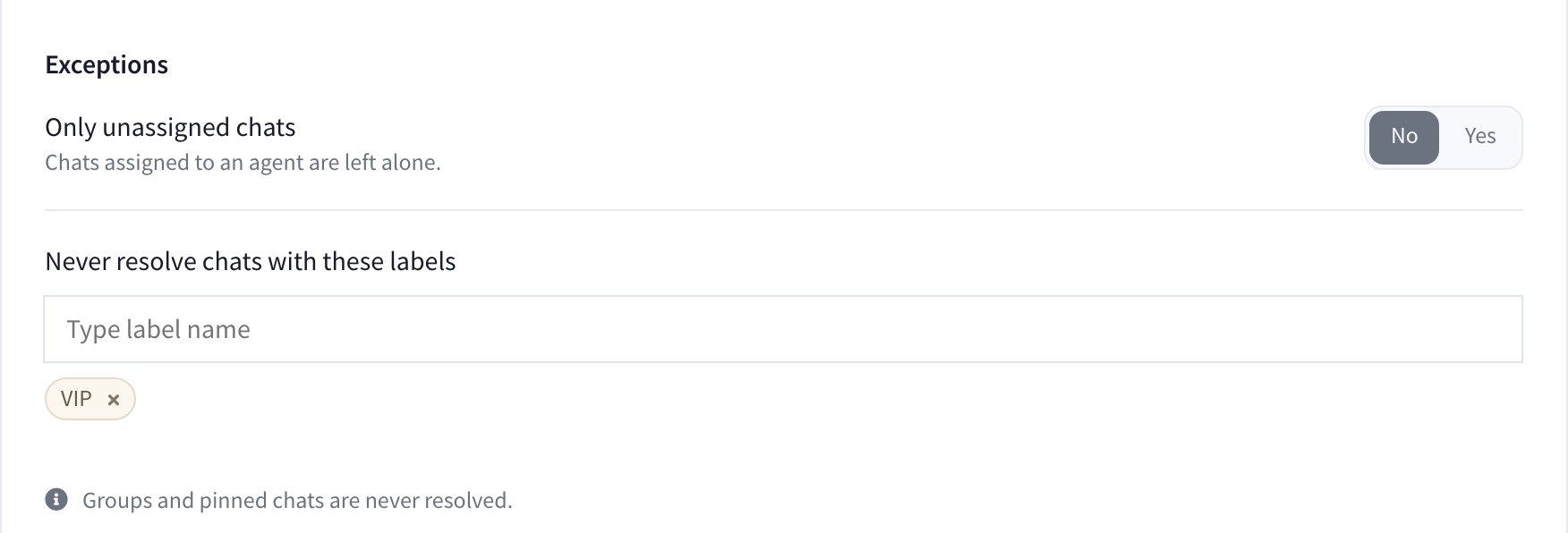
Under Exceptions:
- Only unassigned chats. Leave it on No to resolve every inactive chat. Set it to Yes if your agents prefer to close their own chats: then it only resolves chats that nobody has, and chats assigned to an agent stay open.
- Never resolve chats with these labels. Add the labels of chats that must stay open, for example VIP or Refund.
Groups and pinned chats are never resolved. To keep one chat open, open the chat's menu and click Pin chat.
Tip: when your team promises to get back to a customer, like "I'll check with the doctor and call you back", have them put a label such as Call back on the chat, and add that label here. The chat stays open until someone removes the label.
3. Choose what else happens
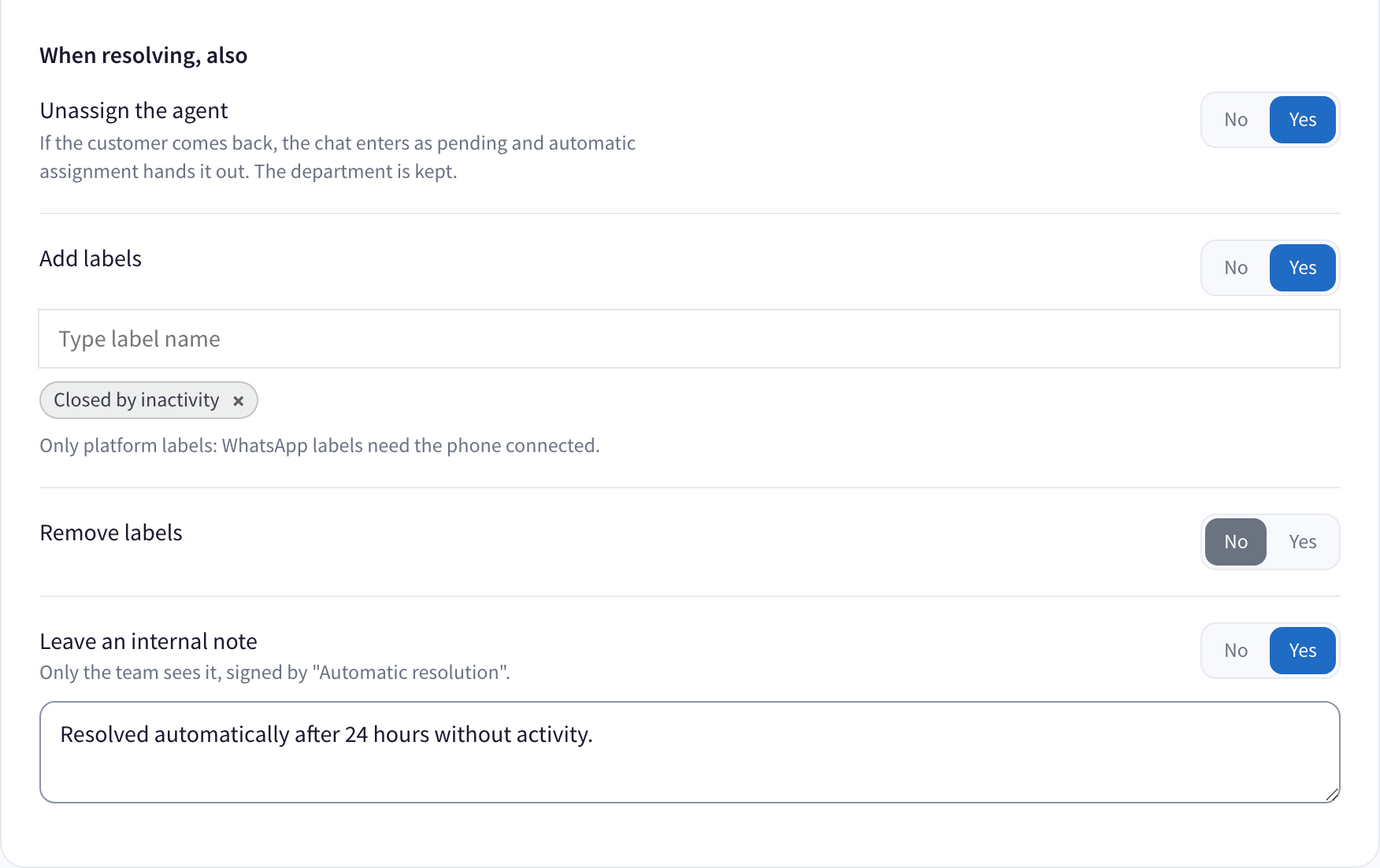
Under When resolving, also, set to Yes what you want:
- Unassign the agent. The chat leaves your agent's list. If the customer comes back, the chat comes back unassigned and automatic assignment gives it to an available agent. Leave it on No and the chat stays with the agent who had it.
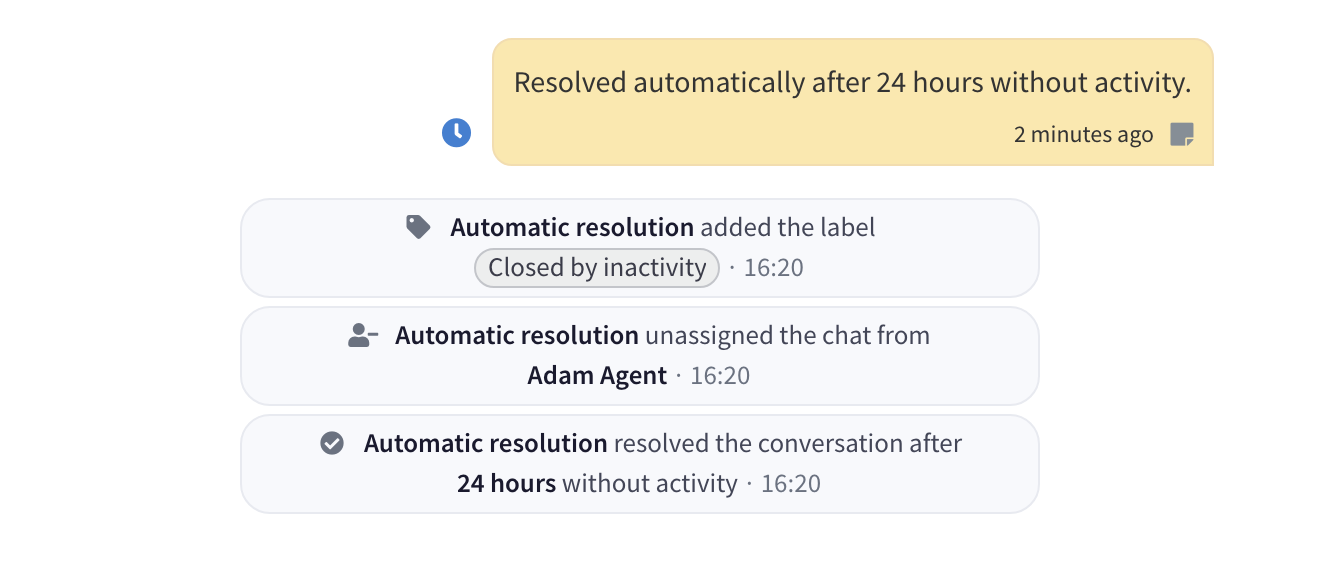
- Add labels. Add a label like Closed by inactivity, so you can find every chat it resolved with the label filter. Use labels you created in TheTechPad, not the ones from the WhatsApp Business app on a phone.
- Remove labels. Take off labels that no longer apply, like Waiting for reply.
- Leave an internal note. Only your team sees it. Write why the chat was closed. If you change the time later, update the note too.
4. Save
Click Save changes. Before anything happens, TheTechPad counts the chats that match your rule right now and tells you how many will be resolved and what will happen to each one. Click the blue button, Turn on and resolve followed by the number of chats, to go ahead, or Cancel to change something.
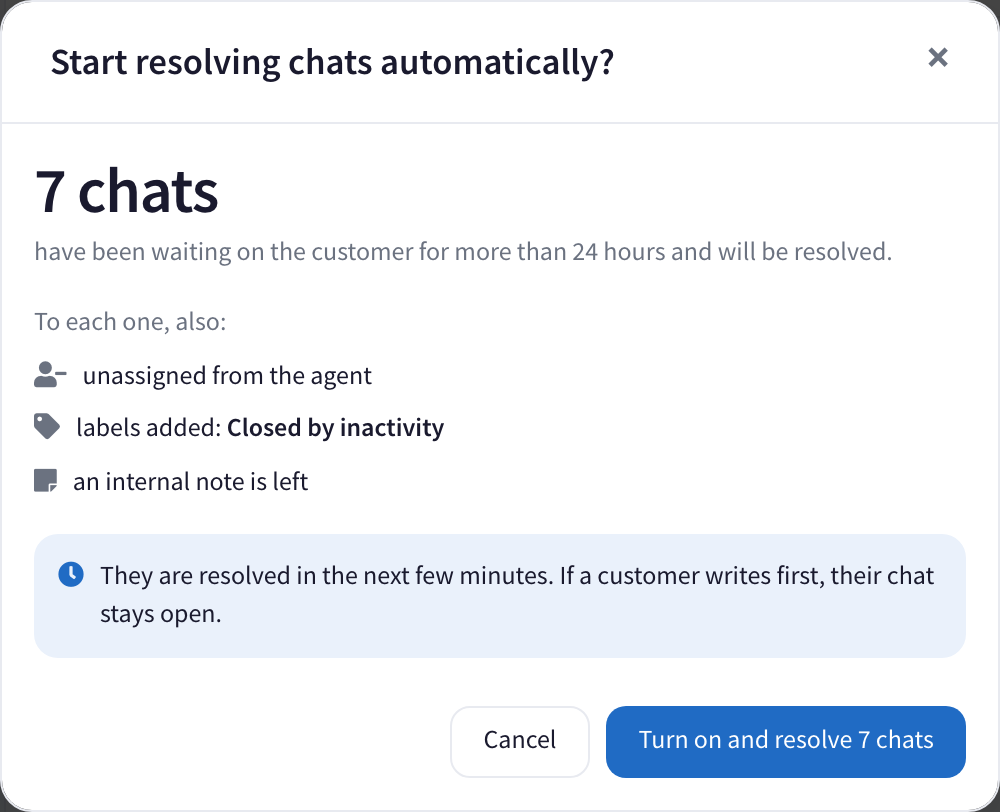
The chats are resolved over the next few minutes. If you have many old chats, it takes a little longer: about 1,200 an hour. If a customer writes while it is still working through them, their chat stays open.
From then on it checks every few minutes, on its own.
What your team sees
Each resolved chat says what happened and who did it: Automatic resolution, never a person. The internal note carries a blue clock instead of an agent's photo, so everyone knows nobody on the team wrote it.
At the top of the page you see how many chats it resolved in the last 7 days and when it last checked.
Questions
What counts as activity? Any message, from your customer or from your team, automatic replies included. Also an internal note, an assignment or a call. A reaction does not count: a thumbs-up is usually how a conversation ends.
Does my customer get a message? No. Nothing is sent to your customer.
What happens if my customer writes again? The chat reopens and appears in your inbox like any new message.
How do I bring back a chat it resolved? Find it in Resolved, or with the label you added, open it and click Unresolve chat.
What does "Any inactive chat" do? It also resolves chats where the customer wrote last and nobody answered. Choose it only if your team follows those up some other way, or a customer could be left without a reply.
I changed the rule and it asked me again. When a change makes it resolve more chats (a shorter time, "Any inactive chat" or fewer exceptions), it shows you the new count before saving. Changing only what happens when it resolves does not ask.
The page warns me about my follow-up message. A follow-up automatic reply goes out when a customer has not answered for a while. If the chat would be resolved before that, the follow-up never goes out, and the page warns you. Choose a longer time here than your follow-up's. Then the follow-up goes out first, and if the customer still does not answer, the chat is resolved later.
How do I stop it? Click Off, then Save changes. Chats it already resolved stay resolved.
The page says it is not available for this number. Contact support and tell us which number it is.